
Login with your Google Account
Back to HelpUse the API credentials you generated to give gScreen access to your Google Photos library. This step only needs to be performed once.
Run this command, substituting your own credentials:
❯ ./gscreen login \
    --client-id="<your client ID>" \
    --client-secret="<your client secret>" \
    --data-dir="<local database path>"

  Log in with your Google account and paste the authorization code below.

  If a browser window didn't automatically open, navigate to this URL: https://accounts.google.com/o/oauth2/auth?access_type=offline&client_id=<client_id>&prompt=consent&redirect_uri=https%3A%2F%2Fphotoslideshow.app%2Foauth%2Fcallback&response_type=code&scope=https%3A%2F%2Fwww.googleapis.com%2Fauth%2Fuserinfo.email+https%3A%2F%2Fwww.googleapis.com%2Fauth%2Fphotoslibrary.readonly&state=state
You should see a browser window with a Google login prompt. If you don't, manually navigate to the URL the login command provides. In either case, once you log in, you should see this:

Click on Allow, and you should be redirected to the photoslideshow.app website with the authorization code in view.
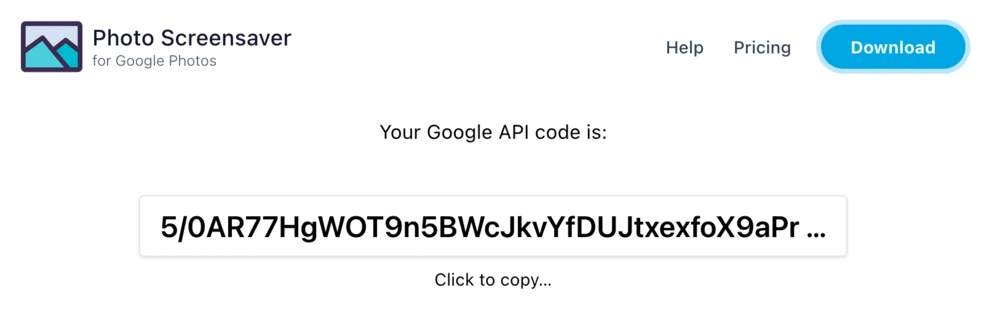
Copy the authorization code and paste it into your terminal window. You are now logged in!